Why this problem-driven guide matters
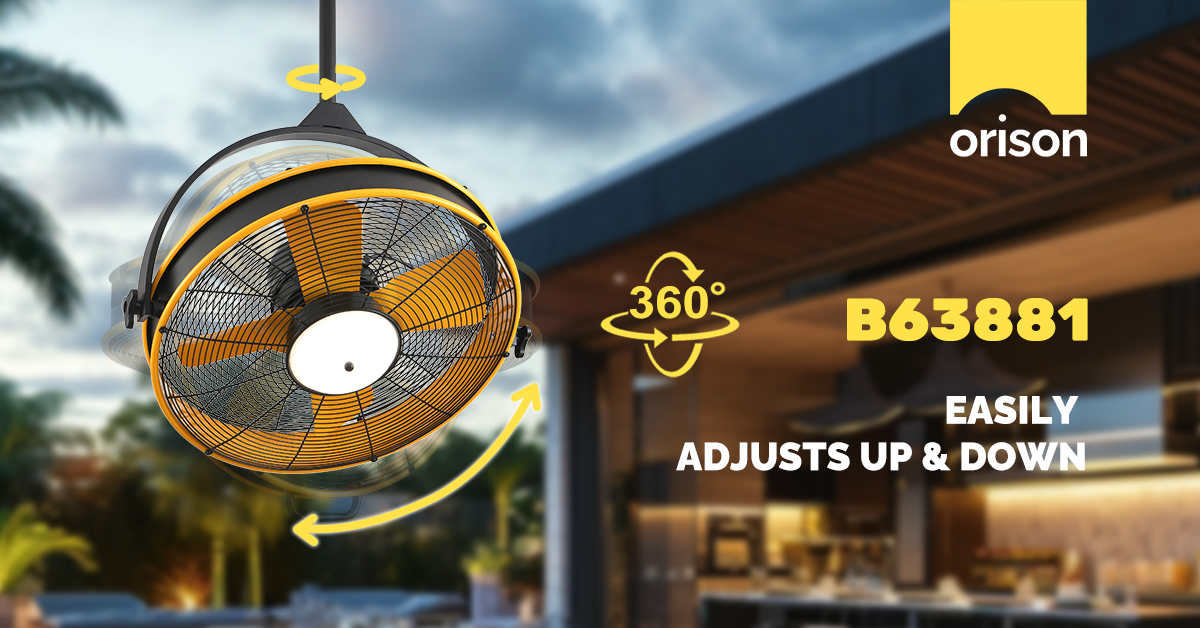
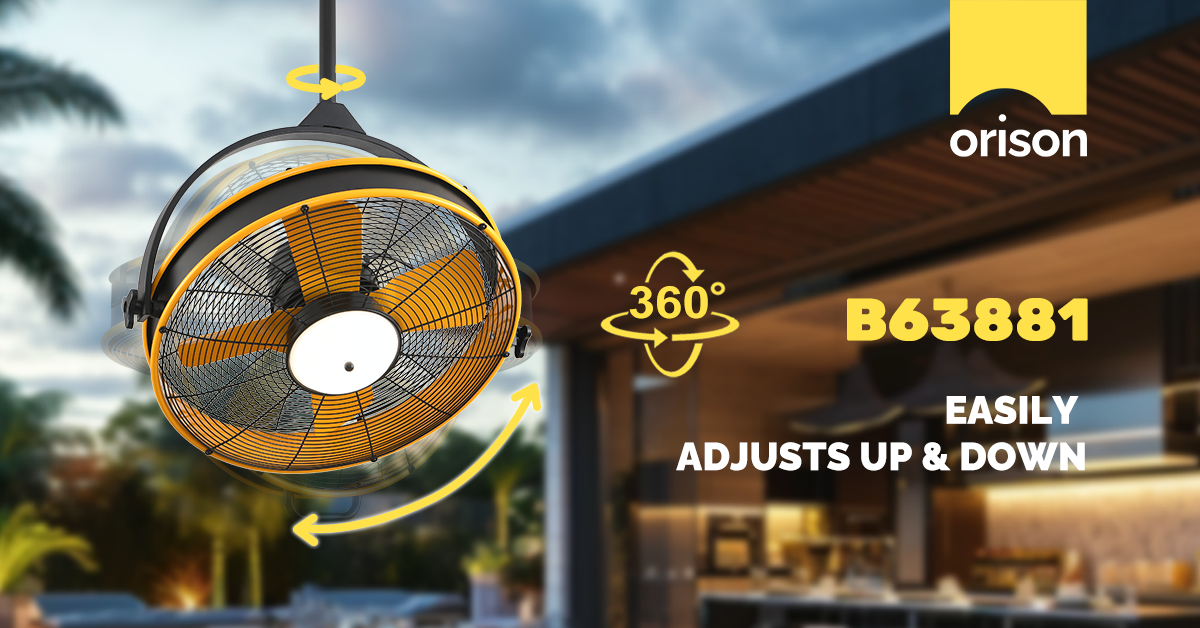
Large smart ceiling fans with integrated lighting are convenient — until they stall, fail to respond, or suffer remote lag. This guide assumes a pragmatic, technician-level mindset: identify the failure class, isolate the domain (power, RF, network, firmware), then apply the lowest-risk fix first. If you bought a model marketed as a smart ceiling fans with light, these steps will help you get it back to predictable operation without needless part swaps.
Common failure modes you’ll see
Expect three repeatable categories: total loss of connectivity (device offline), delayed or intermittent response to a remote or app (latency), and partial failures (light on, fan off or vice versa). Underlying causes are usually one of: power/grounding issues, RF interference (2.4 GHz Wi‑Fi, Zigbee, or proprietary RF), pairing/sync errors, or outdated firmware. Each requires a different diagnostic path.
First-response checklist (order of operations)
Work methodically. Follow this minimal-seconds checklist before swapping modules:
- Confirm power: check breaker, wall switch position, and any fan box switches.
- Hard power cycle: turn off at breaker for 10–15 seconds, then restore.
- Verify LED status codes on the fan or canopy per the manual.
- Check remote batteries and test an alternate control (wall switch or app).
- Note environmental changes — new router, recent construction, or appliances added that could cause interference.
Network and RF troubleshooting
Smart fans commonly use Wi‑Fi (2.4 GHz), Zigbee, Z‑Wave, or proprietary RF. Start by identifying the protocol in use. If the fan uses Wi‑Fi, verify router channel congestion (use channel 1, 6, or 11 on 2.4 GHz). If it’s Zigbee or Z‑Wave, check your hub’s device list and signal metrics. Use a phone app or a simple RF scanner to map interference sources — cordless phones, baby monitors, and neighboring dense Wi‑Fi networks are frequent culprits.
Note: the FCC’s Part 15 rules allow many consumer devices to operate in shared bands, so collisions are normal in urban settings — apartment blocks in Chicago, for instance, often require targeted channel changes or hub relocations to restore reliable operation.
Remote control and pairing fixes
Remote latency often stems from failed pairing or low signal strength between the remote and the fan’s receiver. Follow these steps:
- Factory-reset the remote and receiver per vendor instructions, then re-pair at close range (within 1–2 meters).
- Inspect the receiver inside the canopy for loose antenna leads or connectors; tighten if safe and accessible.
- Replace remote batteries with fresh alkaline cells; avoid rechargeable NiMH for initial tests because of voltage differences.
If pairing succeeds but lag persists, test with a direct local control (physical pull chain, wall switch). If local control is instant while remote is slow, the receiver CPU or firmware may be overloaded or suffering memory leaks — move to firmware steps next.
Firmware, integrations, and cloud latency
Firmware bugs and cloud-based control paths cause intermittent slowness. Check for vendor firmware updates and apply them during a low-usage window. If the device supports local LAN control (no cloud), prefer that for latency-sensitive functions — local control avoids round-trips to vendor servers and common cloud outages.
Integration layers (voice assistants, smart hubs) add latency. To isolate, control the fan directly via its native app or physical remote. If that’s fast, the issue is integration lag — verify your hub’s CPU load and network path to the cloud. —
Hardware-level checks and safe repairs
When electrical symptoms persist, consider hardware faults: failing capacitors in the fan motor board, worn brushes on DC motors, or a degraded light driver. Before opening the canopy, shut power at the breaker and confirm absence of voltage with a multimeter. Inspect for burnt components, loose solder joints, or swollen capacitors. If you’re beyond basic tightening and battery swaps, log the symptom timeline and consult the manufacturer or a licensed electrician — swapping a motor board without confirming root cause wastes money.
Common mistakes to avoid
Three frequent errors waste time: skipping the breaker check, assuming the cloud is the problem, and replacing parts without logging tests. Don’t rush to change the receiver module just because the remote lagged once after a storm — test systematically. Also, mixing 2.4 GHz and 5 GHz SSID names confuses many installers; ensure the fan is connected to the correct 2.4 GHz network if required.
Quick reference: diagnostic flow (concise)
1) Power verified → 2) Local control test (pull chain/wall switch) → 3) Remote battery and pairing check → 4) Network/RF interference scan → 5) Firmware update → 6) Hardware inspection. Use logging tools where available and capture LED/error codes for vendor support. If your fixture is a decorative model such as a chandelier fan light, remember that extra metal and glass can attenuate RF and require antenna repositioning.
Summary of actionable steps
Start with the low-risk actions: power cycle, battery swap, and local control verification. Move to network analysis if the device communicates over Wi‑Fi or Zigbee. Apply firmware updates before replacing hardware. Document each step and capture status LEDs or app logs to speed vendor support. This structured approach reduces unnecessary replacements and gets large, lighted ceiling fans back to reliable service with minimal downtime.
Three golden rules for evaluating fixes
1) Metric: Latency under 300 ms for local control — anything higher indicates a network or cloud path problem. 2) Metric: RSSI (signal strength) better than −70 dBm at the receiver — weaker signals cause intermittent commands. 3) Metric: Mean time between failures (MTBF) improvement after firmware update or repair; if no measurable improvement, escalate to hardware replacement.
Follow these rules and the measured improvements will point you to the right long-term solution — and for projects that need both aesthetic and technical reliability, consider vendors who publish clear RF, firmware, and installation specs; they make troubleshooting predictable. Orison. —